Screens, Input and Menus
You have a form. Now you need a program that opens it, shows data in it, lets the user edit it, and offers actions through a menu. That is the heart of every interactive 4GL program, and it follows a simple, repeatable shape.
Opening and closing a window
A form is shown inside a window. Open it with the form name (no path, no extension), give the window a title, and close it when done.
MAIN
    CLOSE WINDOW screen                    -- close the default text window first
    OPEN WINDOW w1 WITH FORM "product"     -- "product" is the compiled form
    CALL ui.Interface.setText("Product Entry")

    -- ... work with the form ...

    CLOSE WINDOW w1
END MAIN
The VDC way. You do not position windows with
AT row, col, and you do not manually place the OK/Cancel buttons — the VDC client handles window placement and shows the right buttons automatically. Your job is the form and the logic.
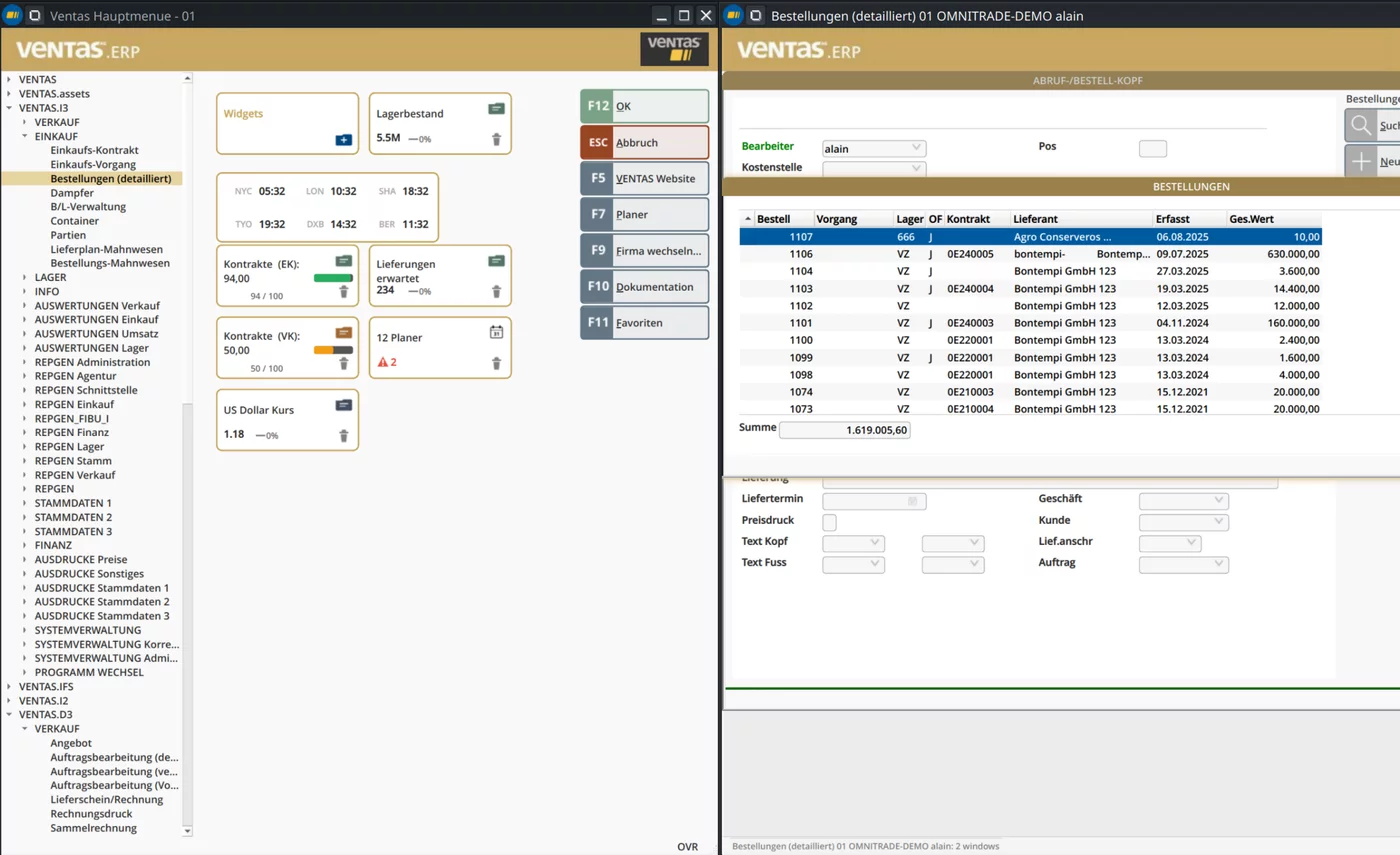
AT row, col — the client places, sizes and snaps them, and users can re-arrange or tile them at will.Showing data: DISPLAY
To put values into form fields, use DISPLAY.
DISPLAY BY NAME matches variables to fields with the same name — the easy case:
DEFINE name  CHAR(40)
DEFINE price DECIMAL(10,2)

LET name  = "Olive Oil"
LET price = 12.50
DISPLAY BY NAME name, price          -- fills fields named "name" and "price"
DISPLAY ... TO lets you name the target field explicitly:
DISPLAY "Welcome!" TO message
DISPLAY total      TO f_total
Collecting input: INPUT
INPUT hands control to the user so they can edit fields, then returns when they
accept or cancel.
The simplest form, INPUT BY NAME, edits the fields matching your variables:
DEFINE code  CHAR(8)
DEFINE name  CHAR(40)
DEFINE price DECIMAL(10,2)

INPUT BY NAME code, name, price
Add WITHOUT DEFAULTS to keep whatever is already in the variables (instead of
clearing the fields first):
INPUT BY NAME code, name, price WITHOUT DEFAULTS
Reacting while the user types: control blocks
The real power of INPUT is the control blocks that fire at specific moments.
You put them inside the INPUT ... END INPUT body:
INPUT BY NAME code, name, price

    BEFORE INPUT
        MESSAGE "Fill in the product details"

    AFTER FIELD code
        IF LENGTH(code CLIPPED) = 0 THEN
            ERROR "Code is required"
            NEXT FIELD code          -- send the cursor back to this field
        END IF

    AFTER FIELD price
        IF price < 0 THEN
            ERROR "Price cannot be negative"
            NEXT FIELD price
        END IF

    ON ACTION f9                     -- a button/key the user pressed
        CALL pick_category()

    AFTER INPUT
        MESSAGE "Saving..."

END INPUT
The blocks you will use most:
| Block | Fires when… |
|---|---|
BEFORE INPUT |
Editing starts, before the first field |
BEFORE FIELD f |
The cursor enters field f |
AFTER FIELD f |
The cursor leaves field f — the place to validate |
ON ACTION name |
The user triggers action name (a button or key) |
AFTER INPUT |
The user accepts the whole form |
MESSAGE "..." shows an informational line; ERROR "..." shows an error line.
NEXT FIELD f moves the cursor to field f (use it to refuse a value and keep the
user on the field).
Knowing whether the user accepted or cancelled
After an INPUT, check INT_FLAG. It is set when the user cancels:
INPUT BY NAME code, name, price
    -- ... control blocks ...
END INPUT

IF INT_FLAG THEN
    LET INT_FLAG = FALSE
    MESSAGE "Cancelled"
ELSE
    MESSAGE "Accepted"
END IF
Menus: offering actions
A MENU shows the action buttons for a window and waits for the user to choose one.
Each COMMAND is a button with the code that runs when it is pressed.
MENU "Products"
    COMMAND "New"
        CALL new_product()
    COMMAND "Edit"
        CALL edit_product()
    COMMAND "Delete"
        CALL delete_product()
    COMMAND "Close"
        EXIT MENU
END MENU
EXIT MENU leaves the menu loop (here, to close the window). Until then, the menu
keeps running: after each command finishes, the user is back at the menu.
You can also handle keys/actions in a menu with ON ACTION, exactly like in
INPUT:
MENU "Products"
    COMMAND "New"     CALL new_product()
    ON ACTION close   EXIT MENU
END MENU
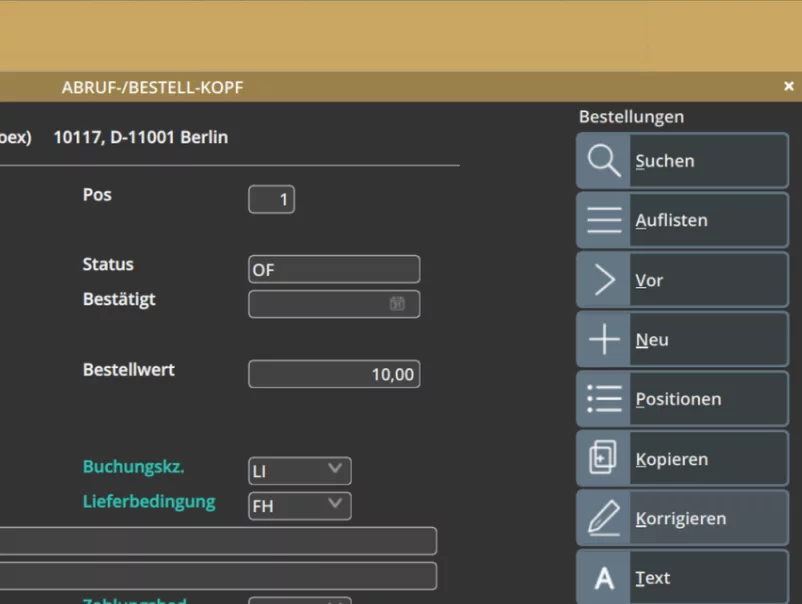
COMMAND and ON ACTION items become this action toolbar — the client supplies crisp SVG icons and consistent placement; you only name the actions.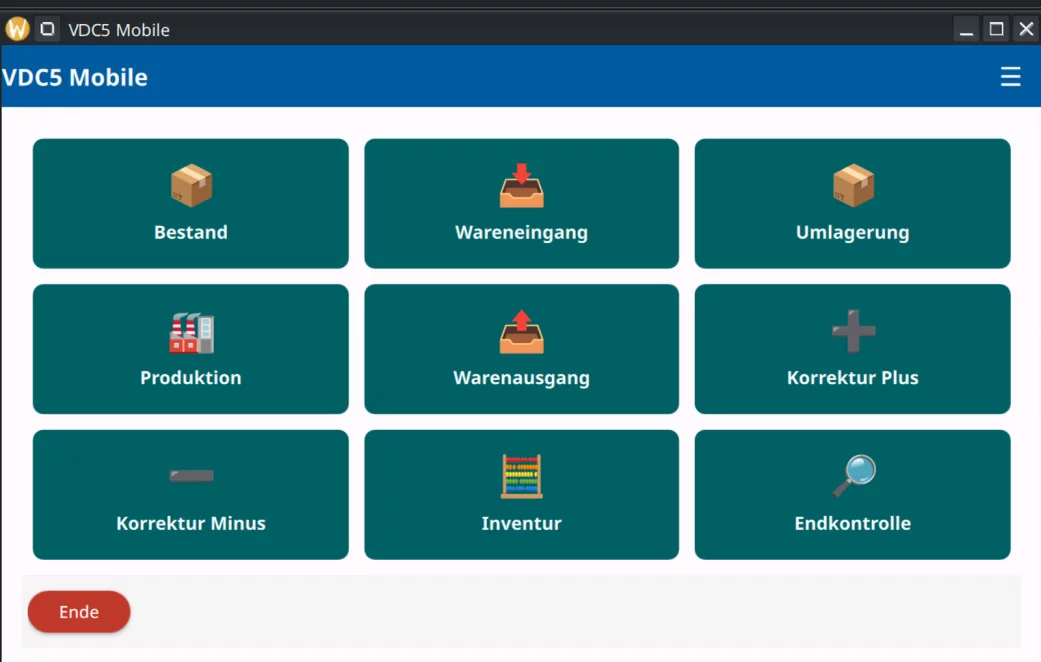
MENU on the mobile client — rendered as touch tiles. One program, both clients.Putting it together
Here is a complete, runnable program for the product.per form from
chapter 3. It shows the standard shape of an interactive
program: open a window, then loop on a menu, calling a function per action.
MAIN
    DEFINE code        CHAR(8)
    DEFINE name        CHAR(40)
    DEFINE category    CHAR(10)
    DEFINE price       DECIMAL(10,2)
    DEFINE active      CHAR(1)
    DEFINE description CHAR(200)

    CLOSE WINDOW screen
    OPEN WINDOW w1 WITH FORM "product"
    CALL ui.Interface.setText("Product Entry")

    MENU "Product"
        COMMAND "New"
            CALL enter_product()
                 RETURNING code, name, category, price, active, description
        COMMAND "Close"
            EXIT MENU
    END MENU

    CLOSE WINDOW w1
END MAIN

FUNCTION enter_product()
    DEFINE code        CHAR(8)
    DEFINE name        CHAR(40)
    DEFINE category    CHAR(10)
    DEFINE price       DECIMAL(10,2)
    DEFINE active      CHAR(1)
    DEFINE description CHAR(200)

    INPUT BY NAME code, name, category, price, active, description

        AFTER FIELD code
            IF LENGTH(code CLIPPED) = 0 THEN
                ERROR "Code is required"
                NEXT FIELD code
            END IF

        AFTER FIELD price
            IF price < 0 THEN
                ERROR "Price cannot be negative"
                NEXT FIELD price
            END IF

    END INPUT

    IF INT_FLAG THEN
        LET INT_FLAG = FALSE
        MESSAGE "Cancelled"
    ELSE
        MESSAGE "Product ", code CLIPPED, " entered"
    END IF

    RETURN code, name, category, price, active, description
END FUNCTION
Compile and run it (with the client listening):
fcompile -xml product.per
4glpc -o product.4ae product.4gl
./product.4ae
Notice the shape.
MAINopens the window and runs the menu; each menu command calls one function that does one job. Keep that structure — it scales from this tiny program to large applications, and it reads top-down like a table of contents.
So far our screens hold one record at a time. Next, learn to show and edit lists of records: Working with Arrays.