Talking to the VDC Client
So far the client has rendered whatever your forms describe. Sometimes you want to talk to it more directly from your program: set a window title, hide a field that does not apply, fill a drop-down at run time, or pop up a friendly notification. The VDC client exposes a small, practical API for exactly this.
All of these are ordinary 4GL calls — no GUI programming, just CALL. This chapter
covers the ones you reach for daily; for the complete catalogue of ui.*
functions, see the UI Function Reference.
Window title and styles
Set the title shown for the current program:
CALL ui.Interface.setText("Product Entry")
Load the application's visual style (textures, button look). The style itself is a file maintained centrally; your program just asks for it by name:
CALL ui.Interface.loadStyles("default")
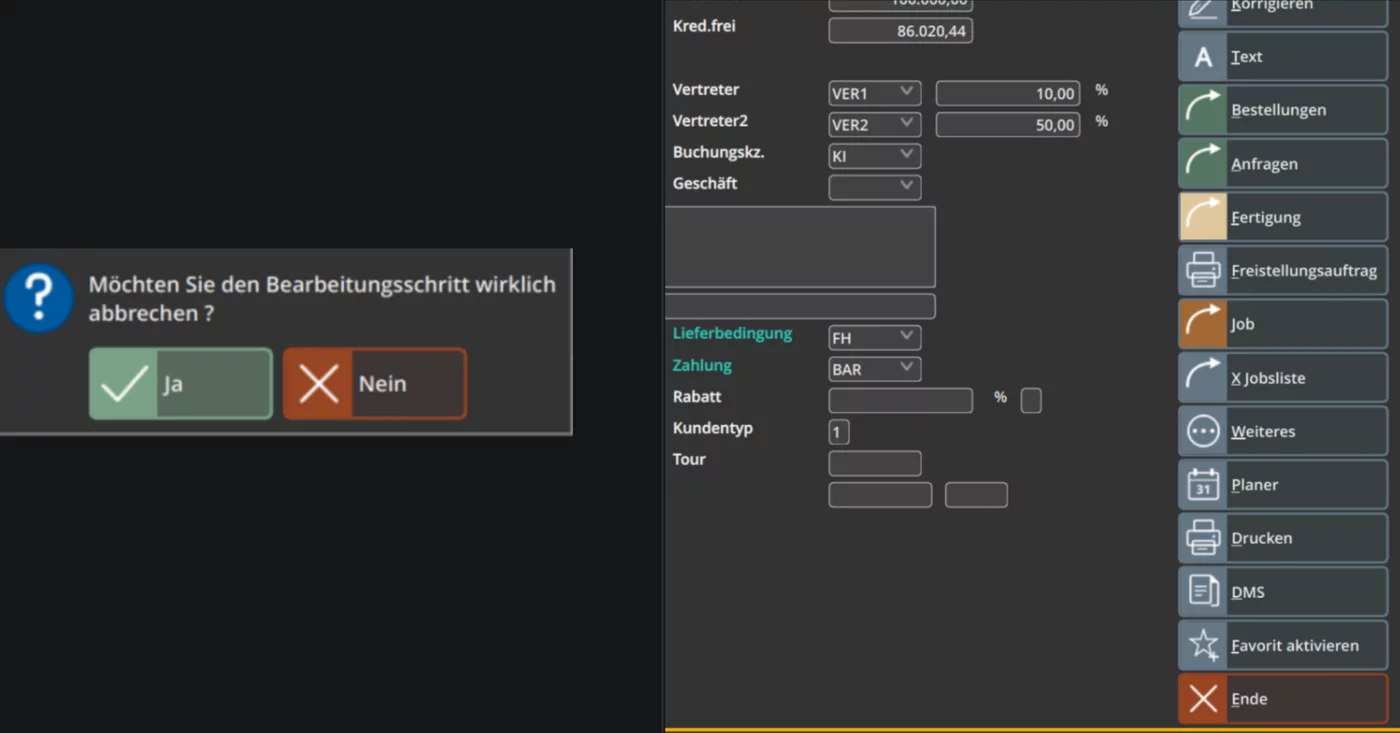
You do not hand-colour buttons. The client colours actions by meaning — confirming actions (OK, Save, Yes) in green, cancelling actions (Cancel, No) in red, function keys in neutral tones — automatically. Write your logic and let the client present it consistently.
Hiding and showing fields at run time
A field can be present on the form but irrelevant in a given situation (for example, a "discount reason" that only matters when a discount is entered). Hide and reveal it from code.
Get the current window, get its form, then toggle the field. 1 hides, 0 shows:
DEFINE w ui.Window
DEFINE f ui.Form

LET w = ui.Window.getCurrent()
IF w IS NULL THEN RETURN END IF

LET f = w.getForm()
IF f IS NULL THEN RETURN END IF

CALL f.setFieldHidden("discount_reason", 1)    -- hide
CALL f.setFieldHidden("discount_reason", 0)    -- show
Which name do I pass? Use the variable/column name — the part after the
=in the form'sATTRIBUTESline, not the layout tag. ForEdit f_reason = FORMONLY.discount_reason;you pass"discount_reason".
(There is a sister call, setElementHidden, for hiding non-field elements such as
labels and group boxes.)
Filling a drop-down from code
In chapter 3 we filled a ComboBox with a static
ITEMS=(...) list. To fill it from the database or compute it at run time, get the
combo by its field name, clear it, and add items. Each item has a value (what
your variable receives) and a label (what the user sees).
DEFINE cb ui.ComboBox

LET cb = ui.ComboBox.forName("category")
CALL cb.clear()
CALL cb.addItem("F", "Food")
CALL cb.addItem("D", "Drink")
CALL cb.addItem("O", "Other")
A common pattern is to fill the combo from a query:
LET cb = ui.ComboBox.forName("category")
CALL cb.clear()
DECLARE c_cat CURSOR FOR SELECT code, label FROM categories ORDER BY label
FOREACH c_cat INTO rl_code, rl_label
    CALL cb.addItem(rl_code, rl_label CLIPPED)
END FOREACH
Toast notifications
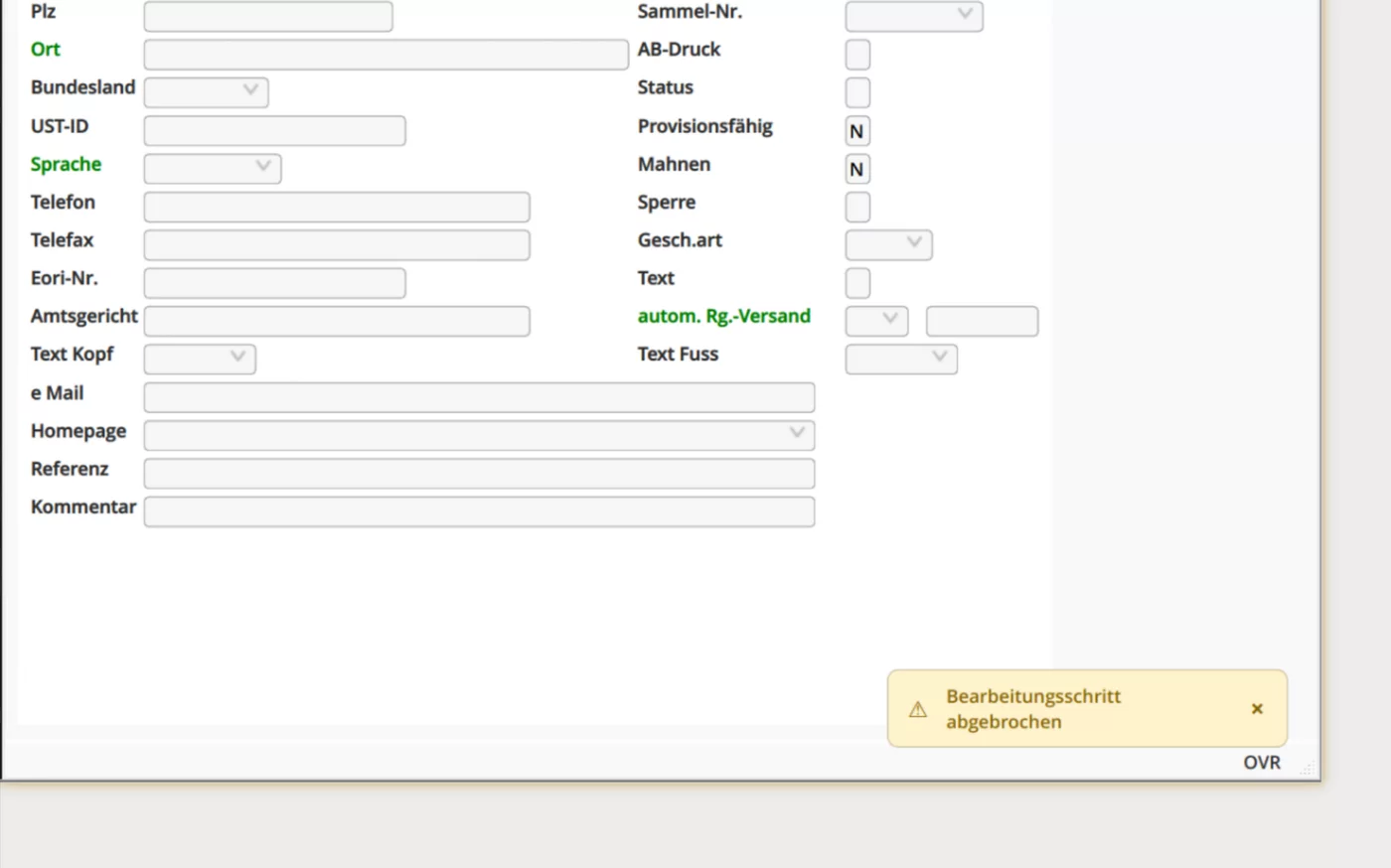
A toast is a small, non-blocking message that appears briefly (typically bottom-right) and disappears on its own — perfect for "Saved", "Sent", "Nothing found" feedback that should not interrupt the user with a dialog.
CALL ui.vdc.toast("Record saved", 0, 3000)      -- green success, 3 seconds
CALL ui.vdc.toast("Could not save", 1, 5000)    -- red error, 5 seconds
CALL ui.vdc.toast("Please check input", 2, 4000) -- yellow warning
CALL ui.vdc.toast("Import started", 3, 4000)     -- blue info
The arguments are (text, type, duration_ms):
type |
Meaning | Colour |
|---|---|---|
0 |
Success | Green |
1 |
Error | Red |
2 |
Warning | Yellow |
3 |
Info | Blue |
Toast vs. a blocking message. Use a toast for "it worked / it didn't" feedback the user does not need to acknowledge. When the user must read and confirm something before continuing, use a blocking dialog (a
MENUwith a confirmation option) instead.
Light and dark mode
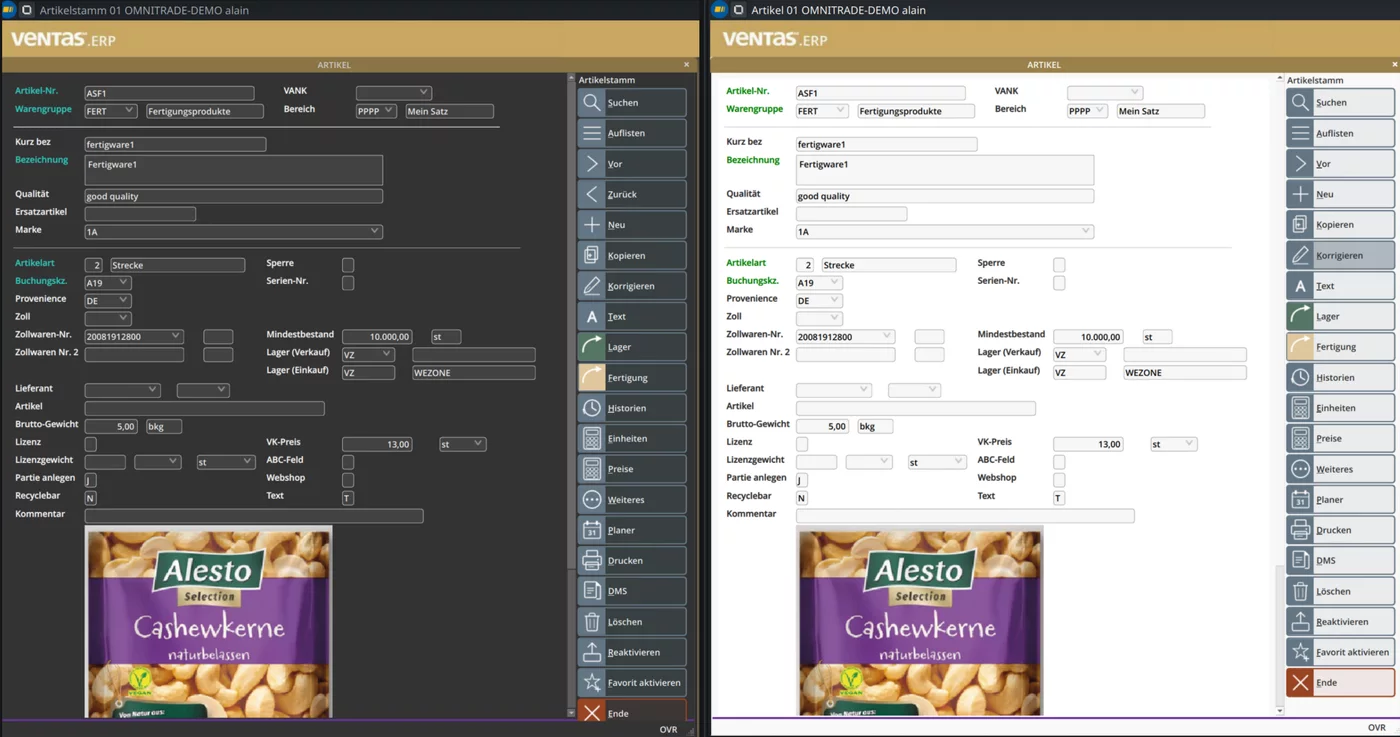
The user chooses Automatic, Light or Dark at login, and the client re-themes every window, menu and dialog to match — including your application's forms. There is nothing to do in your code: build your forms normally and they adapt.
What the client gives your app for free
Because your program speaks a protocol rather than drawing pixels, every application automatically gains the client's features without any code on your side:
| Feature | What the user gets |
|---|---|
| Quick search | Jump to recently used records and commands |
| Window navigator | See and switch between all open windows |
| Grouped windows (MDI) | Related forms shown together in one container |
| Context help | Field- and screen-level help on a key press |
| Mobile client | The same program runs on a mobile client, unchanged |
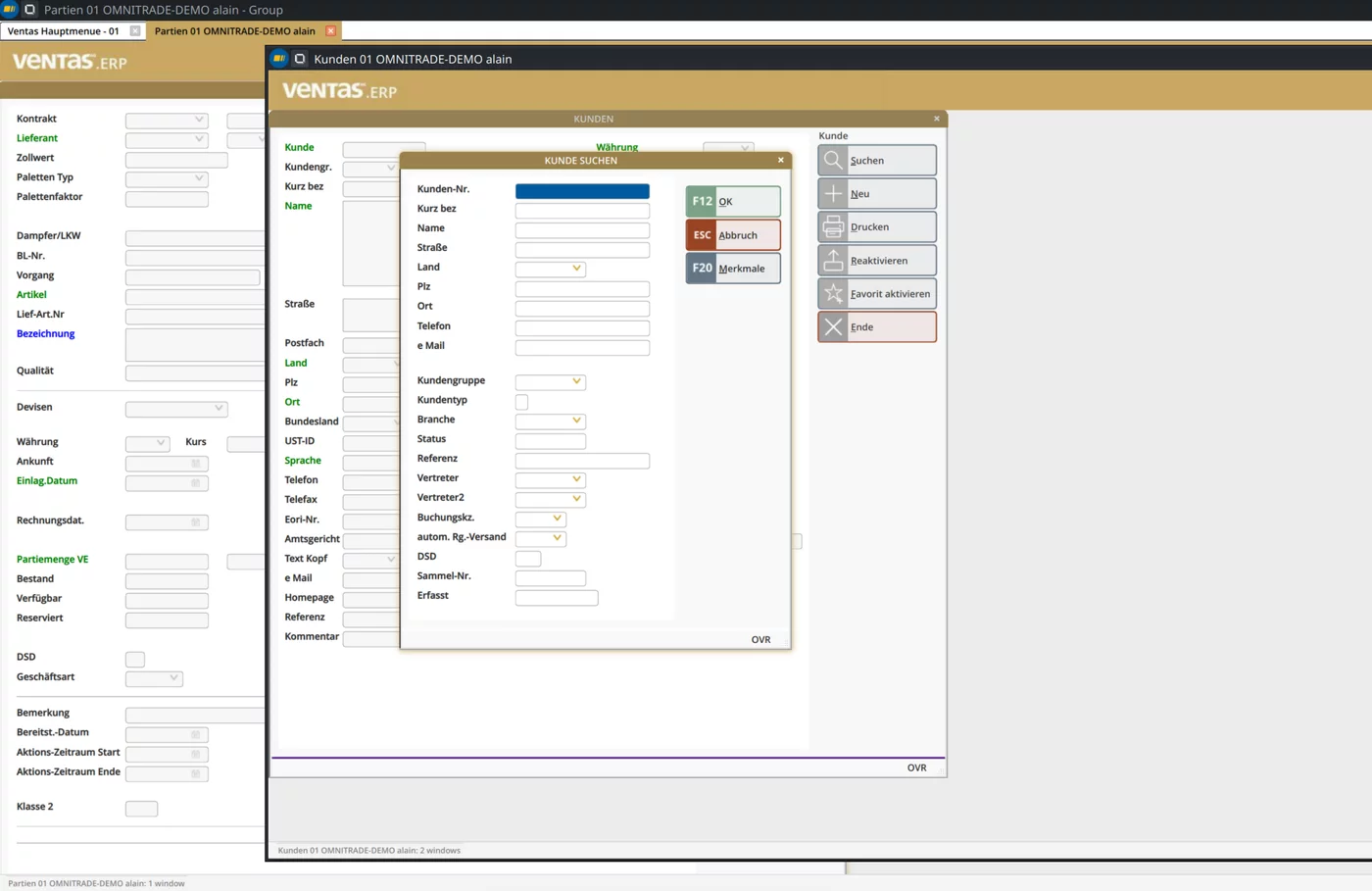
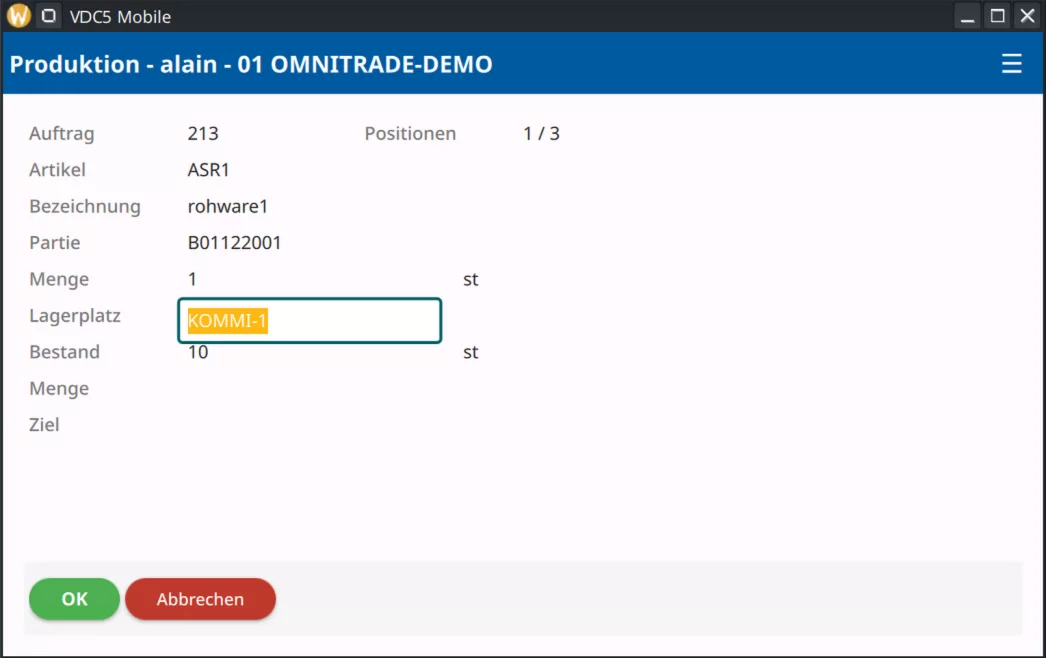
One program, many clients. The desktop client and the mobile client speak the same XML protocol to your program. You write and compile your application once; the client — desktop or mobile — renders it. You do not write separate code or separate forms for mobile.
You now know how to drive the client. The last piece is shipping: how to compile everything from the command line. Continue to Building and Running.